> For the complete documentation index, see [llms.txt](https://docs.harmony.io/llms.txt). Markdown versions of documentation pages are available by appending `.md` to page URLs; this page is available as [Markdown](https://docs.harmony.io/sso-setup/sso-configuration/okta.md).
# Okta
Log in to Okta, go to the admin dashboard, and follow these steps:
{% hint style="info" %}
### Introduction
This integration enables seamless user authentication by leveraging SAML based single sign-on (SSO).\
\
For Sign on methods, SAML 1.1, SAML 2.0 and SWA options will be listed. We do not support SWA and SAML 1.1 option. Please choose the SAML 2.0 sign-on mode to take advantage of SAML SSO between Okta and Harmony.
{% endhint %}
{% hint style="info" %}
#### Prerequisites
Please note that this setup might fail without parameter values that are customized for your organization.\
\
Please use the Okta Administrator Dashboard to add an application and view the values that are specific for your organization.
{% endhint %}
{% hint style="info" %}
#### Supported Features
The Okta/Harmony SSO SAML integration currently supports the following features:
* IdP-initiated SSO
* SP-initiated SSO
For more information on the listed features, visit the [Okta Glossary](https://help.okta.com/en-us/content/topics/reference/glossary.htm).
{% endhint %}
## Configuration Steps
#### Log in to Okta, go to the admin dashboard, and follow these steps:
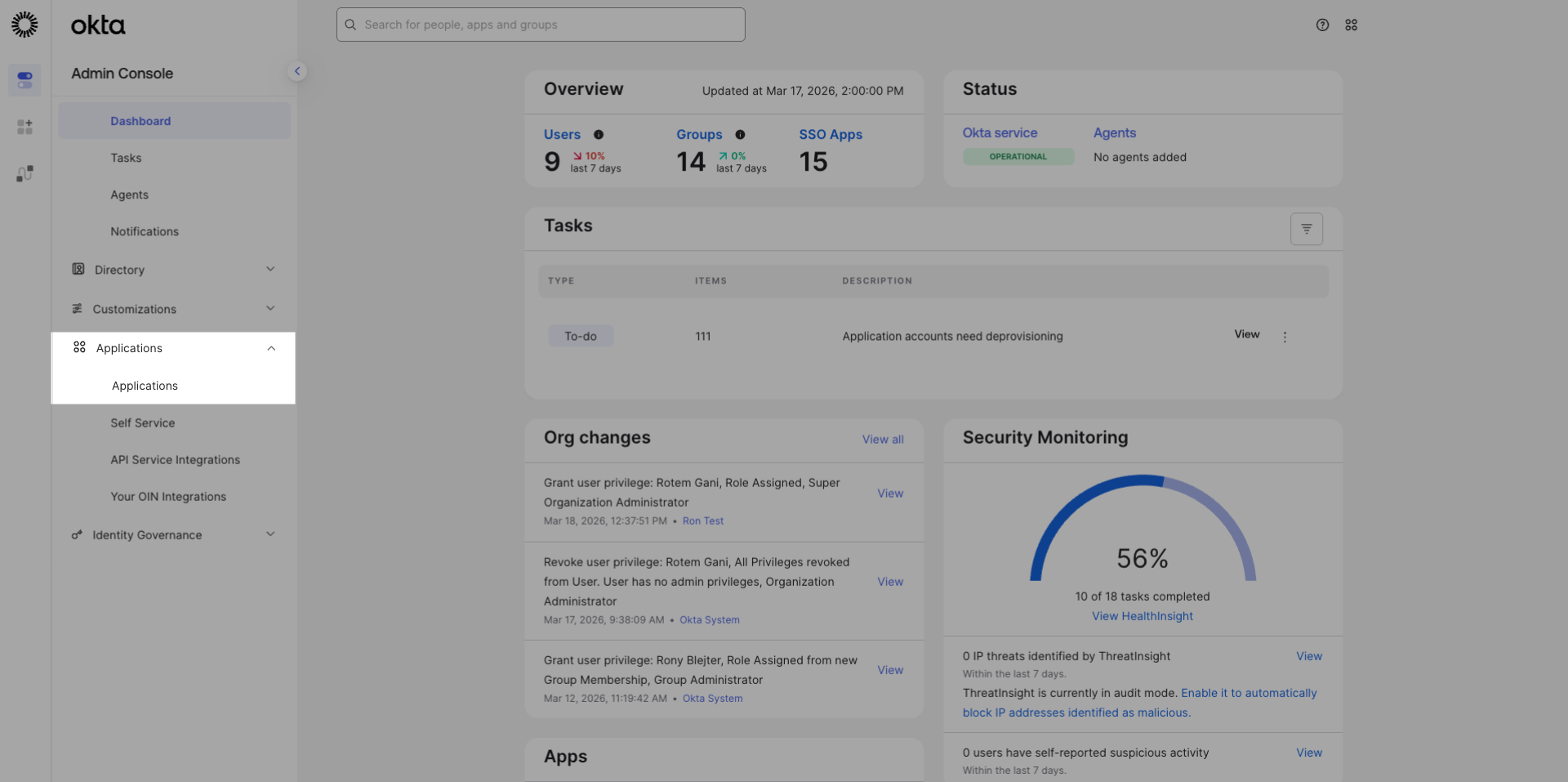
* Select `Applications` > `Applications` in the left navigation panel.
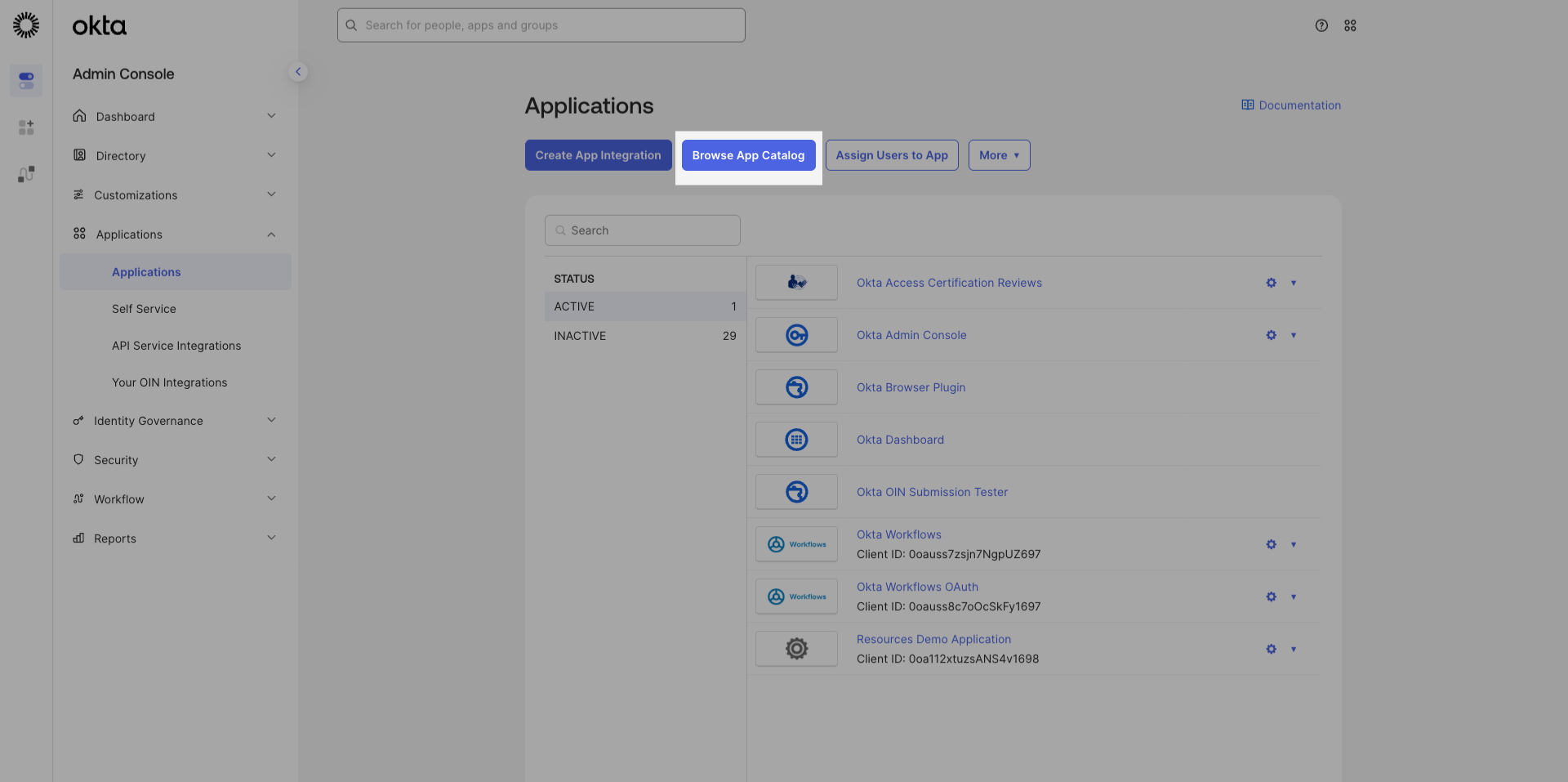
* Click `Browse App Catalog`.
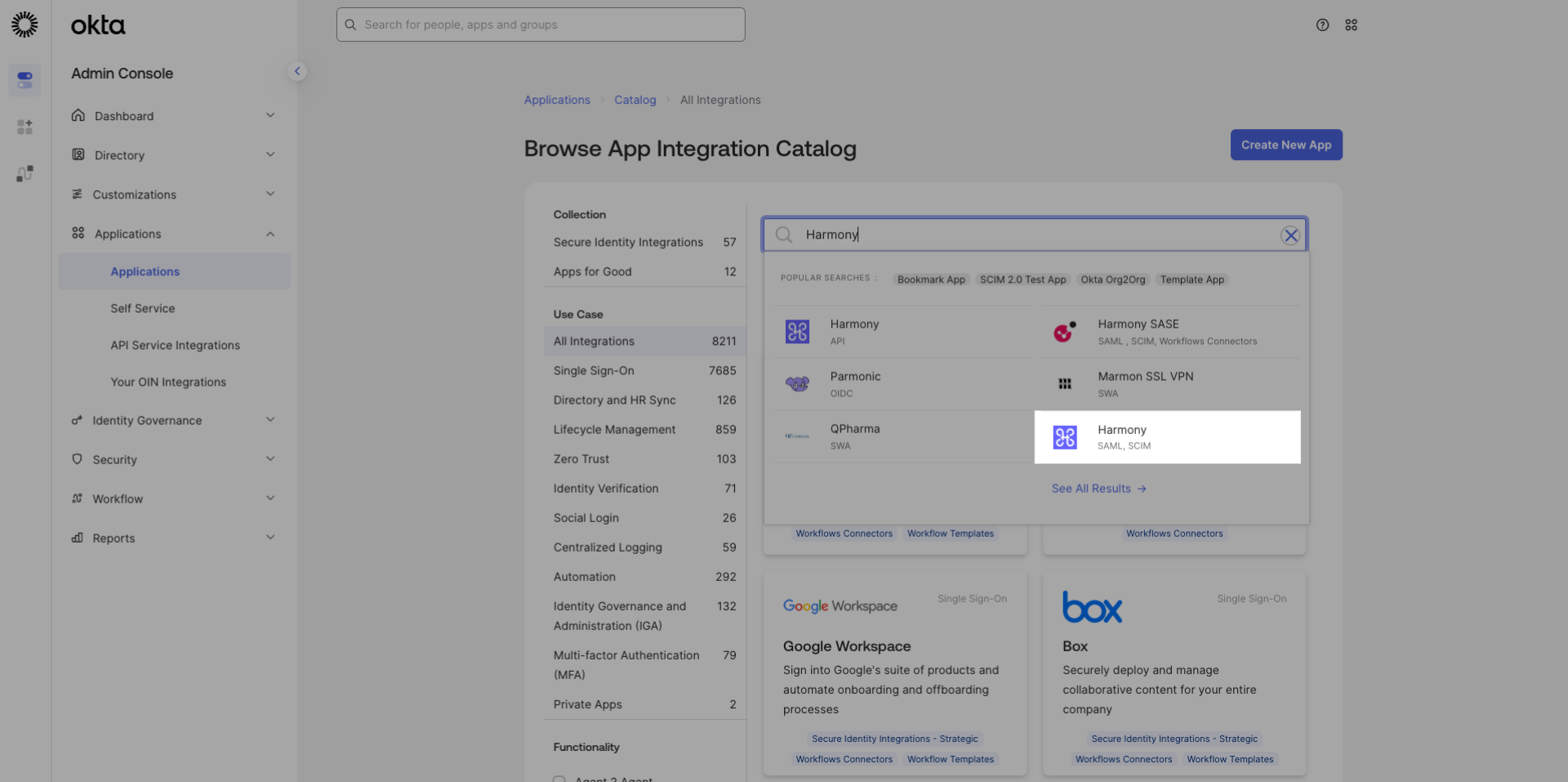
* Type `Harmony` and select the `SAML & SCIM` app.
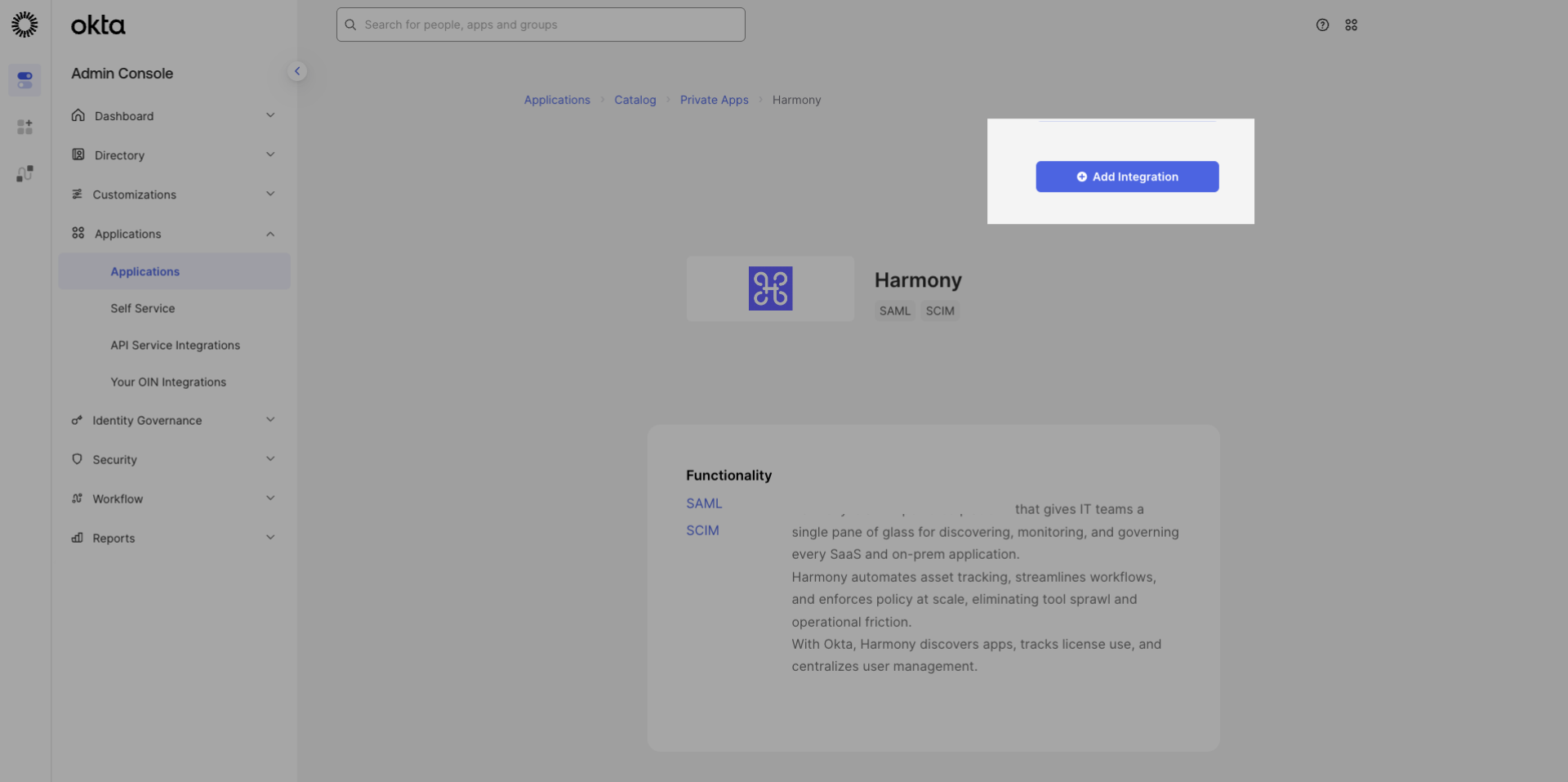
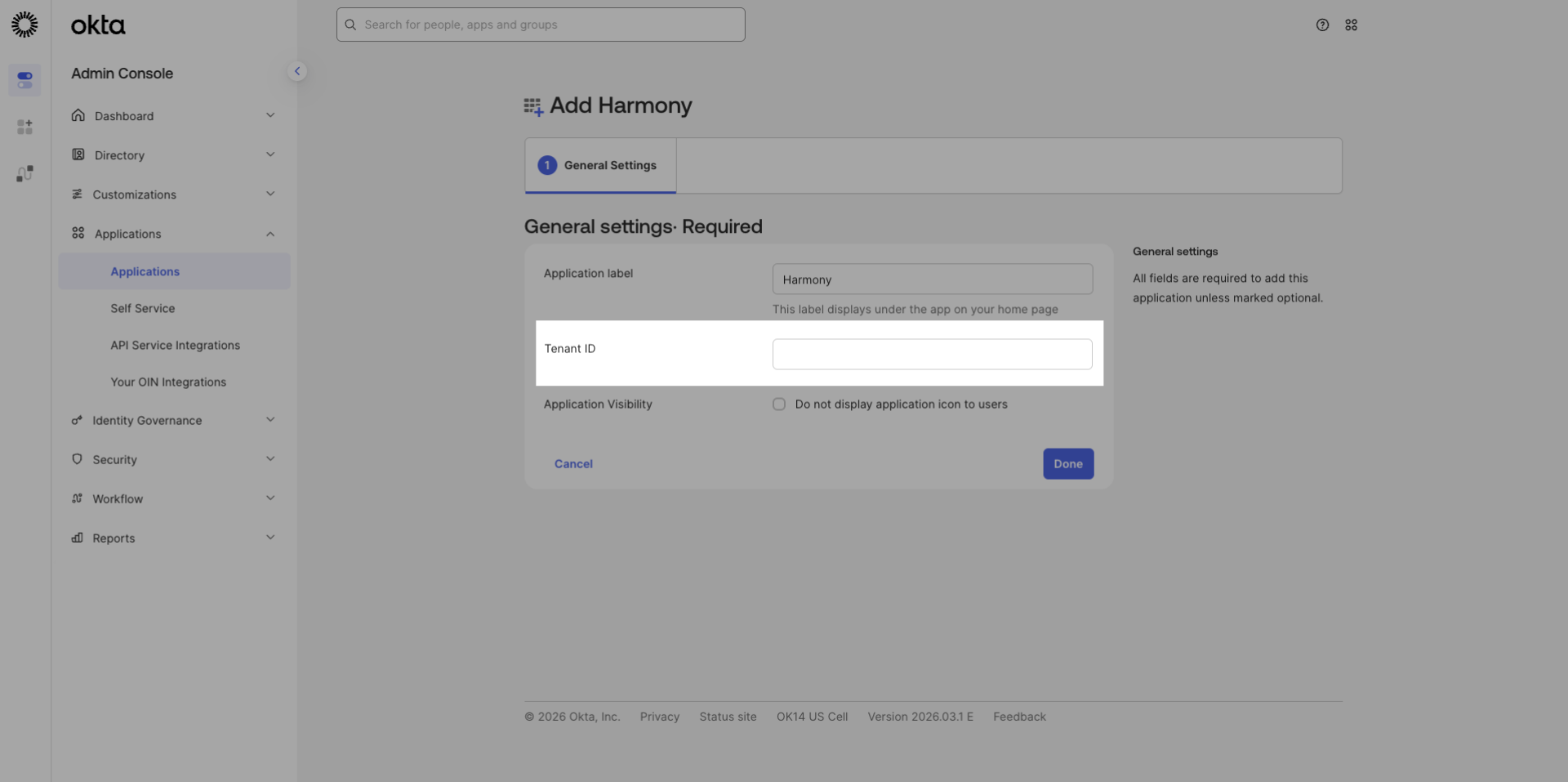
* Click `Add Integration` .
* Enter the `Tenenat ID` you received from Harmony's team.
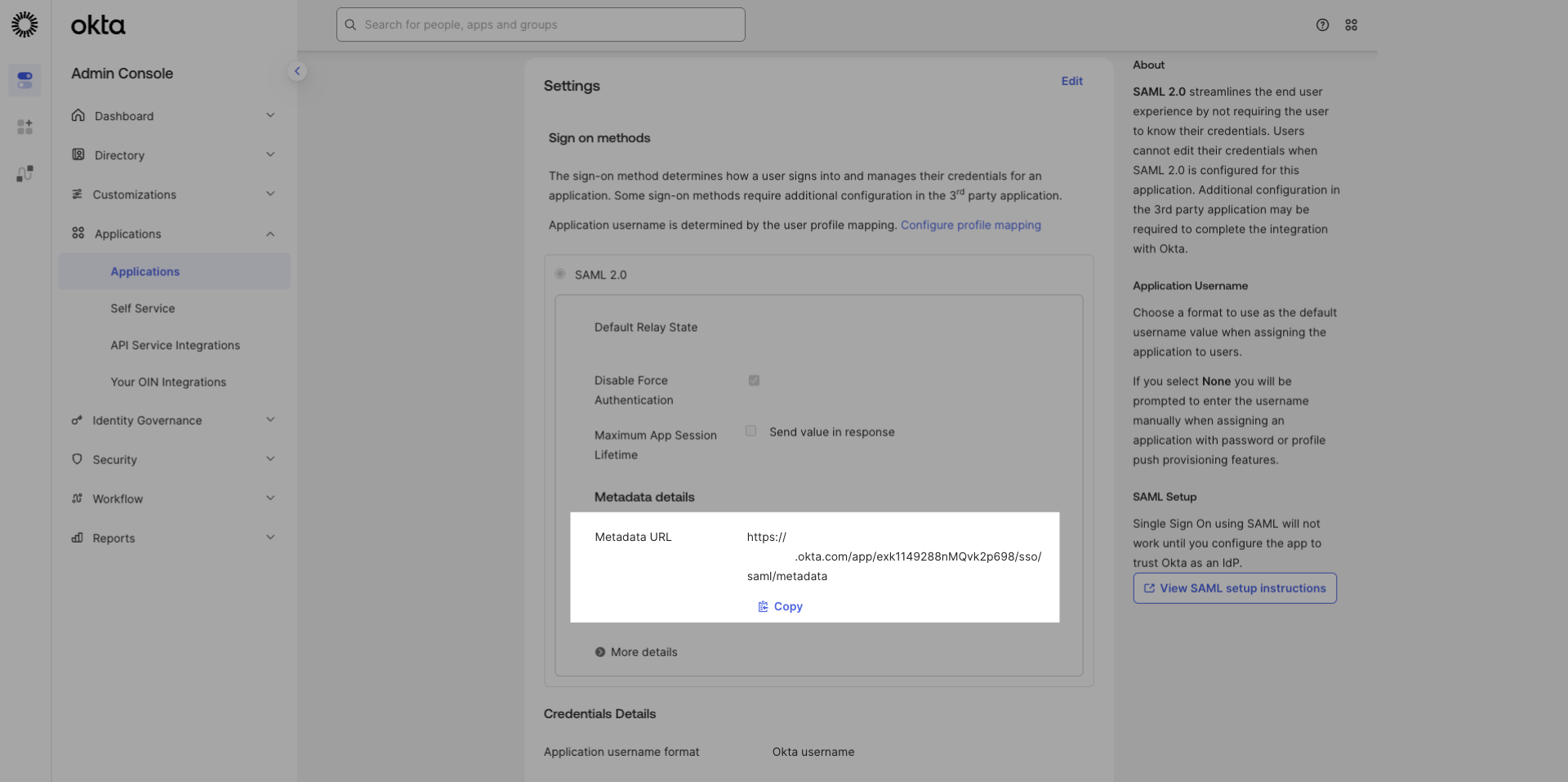
* On the `Sign On` tab copy the `Metadata URL` and send it to Harmony's team.
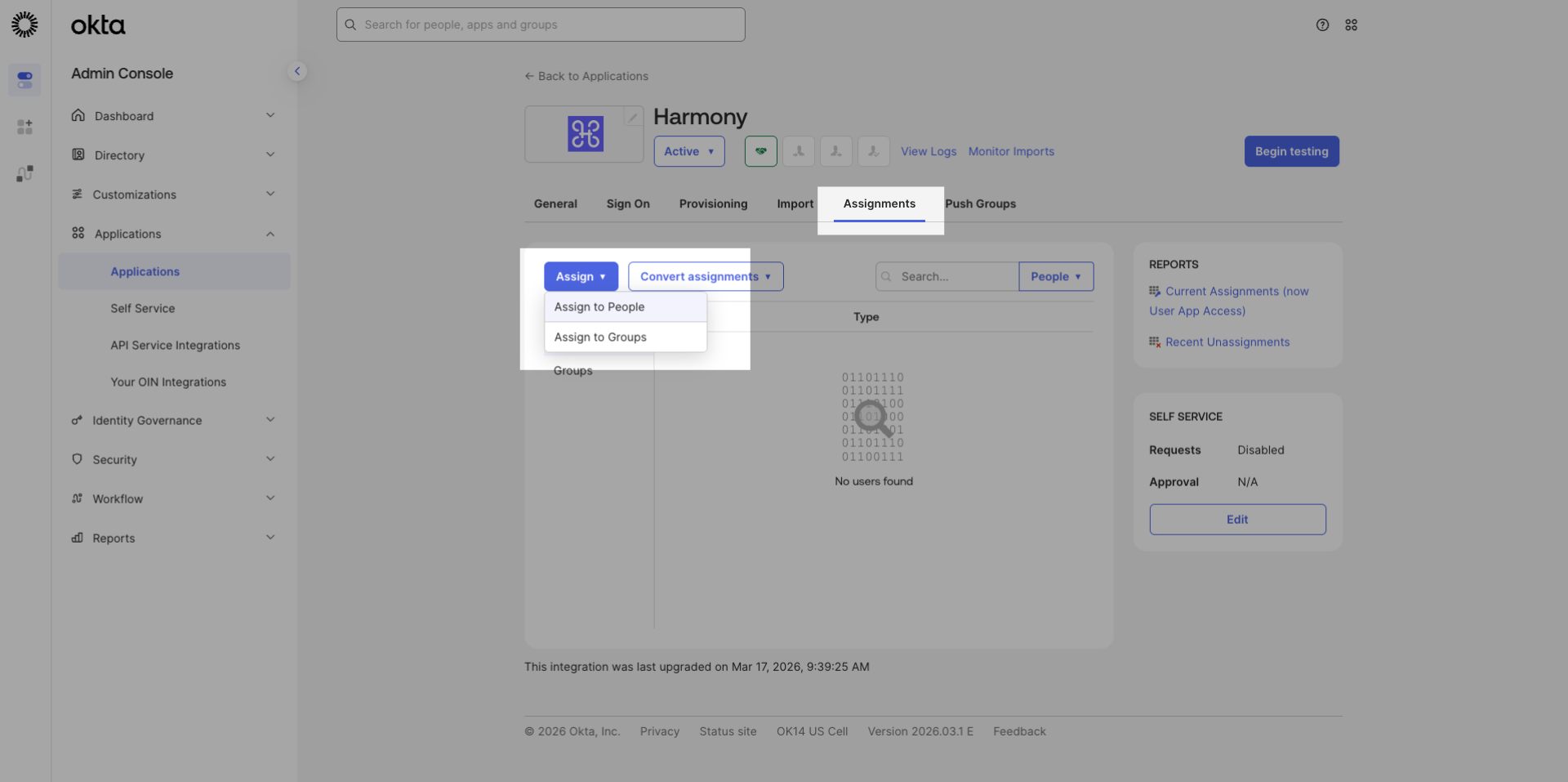
* To give users permission to authenticate via this SAML app, you will need to assign users or groups. Select the `Assignments` tab and assign users or groups.
{% hint style="info" %}
#### SP-initiated SSO
Go to your Client URL provided to you by Harmony.
{% endhint %}
{% hint style="info" %}
#### What's next?
Users should be able to access Harmony either by clicking on the bookmark within Okta, or by going directly to the URL (;
{% endhint %}
---
# Agent Instructions
This documentation is published with GitBook. GitBook is the documentation platform designed so that both humans and AI agents can read, navigate, and reason over technical content effectively. Learn more at gitbook.com.
## Querying This Documentation
If you need additional information that is not directly available in this page, you can query the documentation dynamically by asking a question.
Perform an HTTP GET request on the current page URL with the `ask` query parameter, and the optional `goal` query parameter:
```
GET https://docs.harmony.io/sso-setup/sso-configuration/okta.md?ask=&goal=
```
`ask` is the immediate question: it should be specific, self-contained, and written in natural language.
`goal` is optional and describes the broader end goal you are ultimately trying to accomplish on behalf of the user. GitBook uses it to tailor the answer towards what is most useful for that goal.
The response will contain a direct answer to the question and relevant excerpts and sources from the documentation.
Use this mechanism when the answer is not explicitly present in the current page, you need clarification or additional context, or you want to retrieve related documentation sections.